How to Make a Round Logo: Canva Steps + Pro Tips
Learn how to make a round logo with Canva. Follow a clear process from concept to export, plus tips to avoid common logo design mistakes.
Introduction to round logos
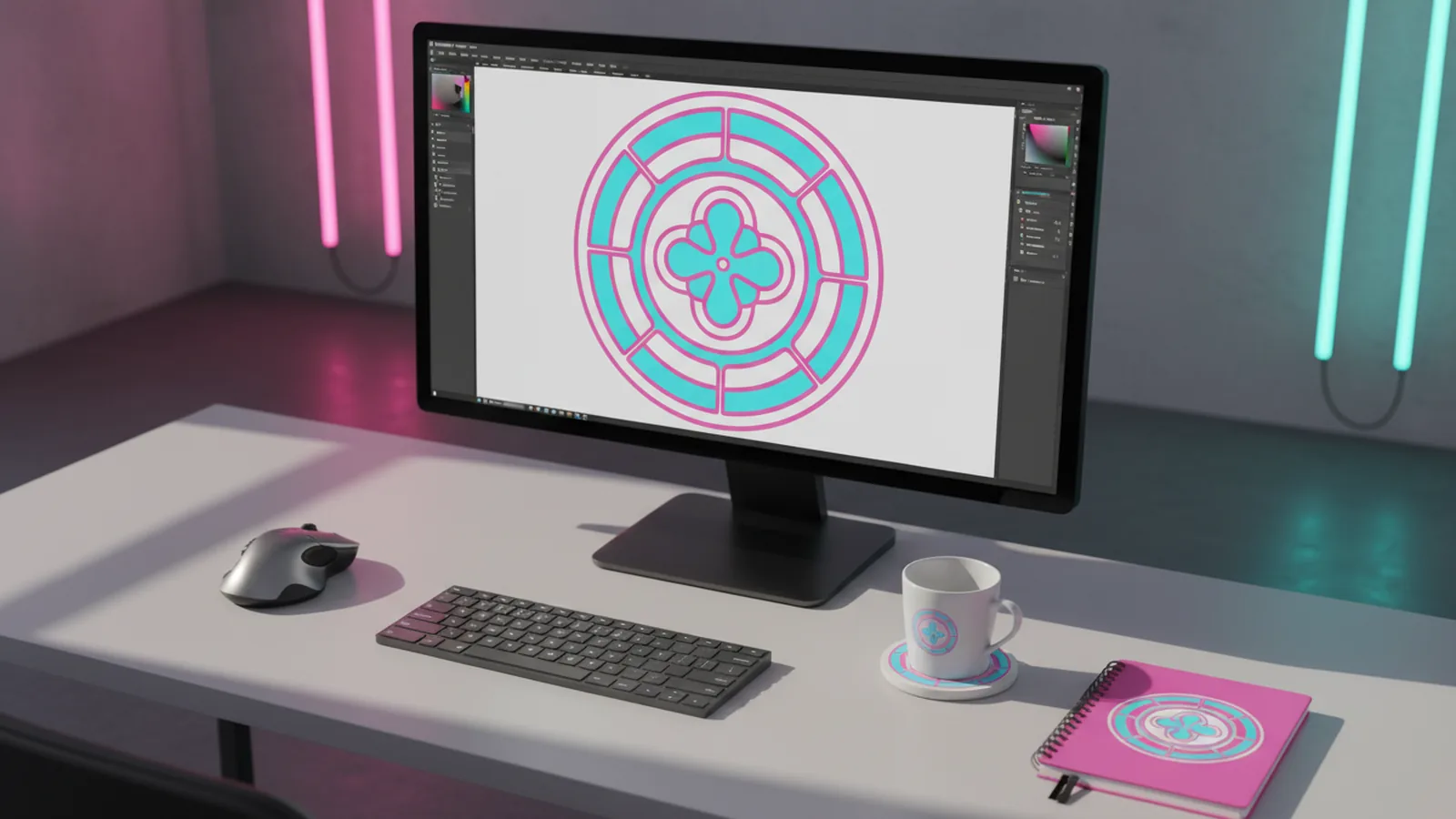
A round logo is a brand mark built inside a circle or circular badge. It can be a full circle, a ring, or a seal-like shape that stays recognizable at small sizes. If you are asking how to make a round logo, the key is to plan the layout for a curved boundary before you pick colors or fonts.
Round logos are popular in branding because they “frame” information. A circle also feels complete, which can support ideas like quality, trust, and community. This makes round logos a strong fit for products, profiles, and locations where your mark needs to look polished everywhere.
In practice, you are designing for both clarity and flexibility. Your logo should work on a website header, a social profile icon, and a printed label. That is why the geometry of a round shape matters early in the process.
Benefits of using round logos
Round logos offer real advantages beyond aesthetics. They tend to be versatile because a circle crops cleanly in many places. That means fewer layout changes when you adapt the logo for different formats.
They are also easy to remember. A simple circular boundary helps people spot your brand faster, even when the icon is small. This is especially useful when customers recognize you from a thumbnail or packaging corner.
- Better fit for profile images: circles match common social avatar crops.
- Clear visual hierarchy: you can place text and icons along an outer ring or center.
- Stronger seal look: circular badges can feel official for memberships or products.
- Consistent branding: one shape helps keep visual identity stable across channels.
Step-by-step guide to designing a round logo
Design starts with a simple question: what must the logo communicate in one glance? For most round logos, the center is for the main symbol or lettermark. The outer ring is for extra context like a brand name, tagline, or year.
Here is a practical workflow you can follow from concept to execution. It works whether you draw shapes by hand or use graphic design software.
- Define the brand goal: write a one-sentence goal for the logo. Examples include “feel trustworthy” or “signal innovation.”
- Choose a structure: decide between a solid circle, ring, or badge. A ring often leaves space for text.
- Pick one main symbol: select an icon that can fit inside the circle at 64px. If it cannot, simplify it.
- Plan typography placement: decide whether the brand name goes in an outer arc or across the center. Curved text must stay readable.
- Build a rough layout: sketch boxes for icon size, safe margins, and text areas. Leave padding so nothing touches the edge.
- Apply color theory: pick 1 primary color plus 1 accent. Use high contrast between text and background.
- Refine shapes and spacing: align the symbol to the circle center. Adjust letter spacing so lines look even.
- Test at small sizes: view your logo at favicon-like sizes. If details vanish, go back and simplify.
- Export for use: prepare versions for web and print. Include a transparent background option when possible.
This process keeps you moving from idea to a usable visual identity. It also helps avoid last-minute changes that can break alignment.
Using Canva to create a round logo
If you want to know how to create a round logo in Canva, you can build it with simple shapes and text tools. The best approach is to create a circular frame first, then place your icon and text inside it. You will get cleaner results than trying to “fix” alignment later.
Start by creating a new design in Canva. Use a logo-friendly size like 1000 × 1000 px so your circle stays perfectly symmetrical. Then build the circle using the shapes tool and layer your artwork on top.
1) Create the circular base
In Canva, open Apps or go to Elements and search for “circle.” Choose a shape and set its size to fill the artboard. If you want a ring, use two circles or pick a ring-style element. Keep a safe margin so your text does not touch the border.
2) Add your logo icon
Next, add the main symbol in the center. You can use an existing icon from Canva’s library, or upload your own vector graphics. If you upload, aim for a clean line icon that looks good in one color.
Resize the symbol until it looks balanced inside the circle. A common target is to make the icon take about 40–55% of the circle’s diameter. That leaves enough space for typography without crowding.
3) Add circular text
To create round logo text, you need curved text. Canva’s text effects and arc-style text options can help, depending on your plan and available templates. Look for text options that follow a curve, or use a circle guide shape for your text placement.
If curved text is not behaving well, switch to a simpler layout. Put the brand name in a straight line across the center, and move the tagline to a smaller line. Clarity beats clever curvature in most logo contexts.
4) Choose colors and fonts
When you create round logo in canva, keep your palette small. Use Canva’s color picker and test contrast between your background and text. For fonts, choose one bold font for the brand name and one simple font for supporting text.
A good rule is: pick fonts that work in uppercase and at small sizes. If you cannot read it when zoomed out, it will not survive real-world use.
5) Adjust spacing and alignment
Use Canva’s alignment tools to center your icon and evenly space elements. Turn on grid or guides if you prefer a structured workflow. Then check symmetry by zooming out and confirming the logo feels balanced.
6) Export the right files
For a usable branding asset, export multiple formats. Download a PNG with transparent background for easy web use. If you used vector elements or can export as SVG, do that for best scalability.
This matters because a round logo is often used at tiny sizes. Exporting properly helps keep edges crisp and text readable.
Following these steps is one of the most direct answers to how to make a round logo in canva. It also sets you up for consistent future versions.
Tips for effective logo design
Round logo design principles focus on legibility, spacing, and contrast. Your circle shape creates a strong frame, but it can also compress details. So design with constraints from the start.
- Use a limited palette: two to three colors keep the look clean.
- Prioritize contrast: light text on dark backgrounds or vice versa.
- Limit fonts: one typeface family usually looks more professional.
- Keep stroke weight consistent: if you use an icon outline, match thickness.
- Use visual balance: center-heavy marks feel stable; ring-heavy marks feel formal.
Also consider how your logo will appear on different surfaces. A round logo on packaging needs strong contrast under mixed lighting. A round logo on a website needs to remain clear on a bright background.
If you plan to support a broader visual identity, treat the logo as part of a system. Pick matching colors for your UI and keep the same icon style across other assets. This is where UI/UX design thinking can help, even if you are only making the logo.
Common mistakes to avoid
Most logo problems are not “style” problems. They are layout problems that show up at the worst time, like when you try to use the mark on a phone screen.
Watch for these common pitfalls when you design a round logo. They are easy to miss during the first draft.
| Mistake | What it causes | How to fix it |
|---|---|---|
| Too much detail in the center | The icon becomes a blob at small sizes | Simplify shapes and reduce inner lines |
| Text too close to the circle edge | Characters clip or feel crowded | Add padding and test at 64px |
| Low color contrast | Text loses readability on busy backgrounds | Use a darker or lighter color for text |
| Too many fonts | The logo looks inconsistent and busy | Use one bold font plus one supporting font |
| Uneven spacing | Feels amateur even if design is nice | Use alignment guides and centered layout checks |
Finally, avoid relying on effects that do not export well. If your look depends on heavy shadow or complex gradients, test the export before you commit. Branding works best when your design stays clear in plain form.
Conclusion and additional resources
To learn how to design a round logo, you need a plan for the circle boundary, not just a pretty icon. Start with the layout structure, pick a limited palette, and test readability early. When you use tools like Canva, build the circle first and align everything to the center.
Once your round logo is readable at small sizes, you can confidently reuse it across platforms. That is the real win of round branding. It stays recognizable in avatars, on cards, and on product labels.
If you want to go deeper, focus on vector graphics concepts and clear logo typography. Clean shapes and consistent spacing are what make a round mark look “designed,” not just assembled.
Outbound resources: You can reference the WCAG contrast guidance to sanity-check color choices for readability. For general logo and design file prep ideas, review RFC 8259 JSON guidelines only if you need structured design metadata exported by your workflow.
FAQ // open channel
- What is a round logo and why does it matter for branding?
- A round logo is a logo mark built inside a circle or circular badge. It helps your brand look consistent and recognizable across avatars, labels, and small screens.
- How do I make a round logo from scratch?
- Define the logo message, choose a circle or ring structure, place a simple center icon, then add readable text with clear spacing. Test at small sizes, then export web and print versions.
- How to create a round logo in Canva step by step?
- Build a circular shape first, add your center icon, then add circular or curved text if needed. Align everything to the center and export a PNG with transparency, plus vector options if available.
- What font works best for a round logo?
- Use a bold, legible font for the brand name. Keep it readable at small sizes and avoid too many font styles.
- What are common mistakes when designing a round logo?
- The most common issues are crowded text near the edge, low color contrast, and too much detail in the center icon. Simplify the icon and add padding for a cleaner result.
- Should I use vector graphics for a round logo?
- Yes when you can. Vector artwork scales better for print and avoids blurry edges when your round logo appears at different sizes.